Make the Shushing Tiptoe Meme With You and a Friend
Make the tiptoe meme with one or two portraits. Choose roles, prepare iPhone photos, check costs and output, and troubleshoot face mismatches or missing results.
Last updated: 2026-10-14
Maintained by RumpelstiltskinAI Video.
Start with one clear photo and choose the character you want to play. You can select the dancer, the reacting character, or both. Create a personalized video with the original soundtrack and download it as an MP4. AI facial likeness, expressions and motion can vary.
Choose a role · Photo help · Output and audio · Task and result help
Which tool can put my face in the shushing, tiptoe dance video?
If you mean the little man dancing in a straw-filled room while a woman watches, this generator uses that Rumpelstiltskin reference scene. Choose Dancer to put yourself in the dance, Onlooker to play the person watching, or add two photos to cast both. You do not need to find a prompt or rebuild the scene in an editor.
Can I replace only the woman watching and keep the original dancer?
Yes. Choose Onlooker, add your photo and leave Dancer empty. The model is instructed to keep the original dancer. See the onlooker-only photo and video example before choosing your role; AI details can vary.
Can I keep the original music? Can I post it as a vertical video?
The download includes the corresponding original soundtrack. The current output is a 12-second, 16:9, 480P MP4. You can import it into your social app or editor; a vertical layout needs cropping or padding outside this generator. For TikTok, Instagram Reels or YouTube Shorts, place the landscape clip on a 9:16 canvas with padding if you want to keep both people visible. Cropping to fill the screen can remove the reacting friend. This framing step is done in your editor, not in this generator. There is no 720p or 1080p option in this template. Listen to the reference preview to hear the included audio; do not assume it matches every social-media edit of the meme.
Can I make this dance video on my phone without editing software?
Yes. Open the website in your phone browser and choose photos from your photo library. You do not need to install an app, write a prompt or edit the dance manually. Download the finished MP4 before its 24-hour expiry. The current output is landscape 16:9, not a vertical video template.
How do I put me and a friend in the shushing tiptoe meme?
Upload one clear portrait of each person: Photo 1 plays the dancer and Photo 2 plays the reacting friend. Use Swap Roles before submitting if the assignments are reversed. Selecting both characters costs the same 100 credits as selecting one; you are paying for one video, not per face. You can also upload just one photo. The model will try to retain the unselected template character, though faces and other details can change. See the single-role example for an actual result. Use the labeled reference portraits to identify the roles, then check the assignments before generating.
Which photo should I use, and why will an upload not work?
Use one or two JPG, PNG, WebP, HEIC/HEIF, AVIF or BMP photos, at most 20 MB and 64 megapixels each and at least 240 pixels on each side. Photos are automatically resized and converted before submission. Choose a well-lit, unobstructed face. Avoid group shots and strong filters. Role labels describe positions in the video, not the gender of your subject. Use photos you have permission to upload.
- A selfie: use an evenly lit portrait with the face facing the camera and no hands or sunglasses covering it. You do not need a full-body dance pose.
- An iPhone photo: HEIC/HEIF is supported. If conversion fails, export the photo as JPG and select it again.
- A group photo: use a separate portrait for each role, or crop each person into a separate image with only one face. Keep each crop above the minimum dimensions.
- A rejected file: check both its file size and pixel dimensions. A file under 20 MB can still exceed the 64-megapixel limit.
A clearer photo gives the model a better reference; it does not guarantee an exact likeness.
Open the two-role generator to see the original actors and the 12-second reference excerpt with original audio.
Match your photo to the role
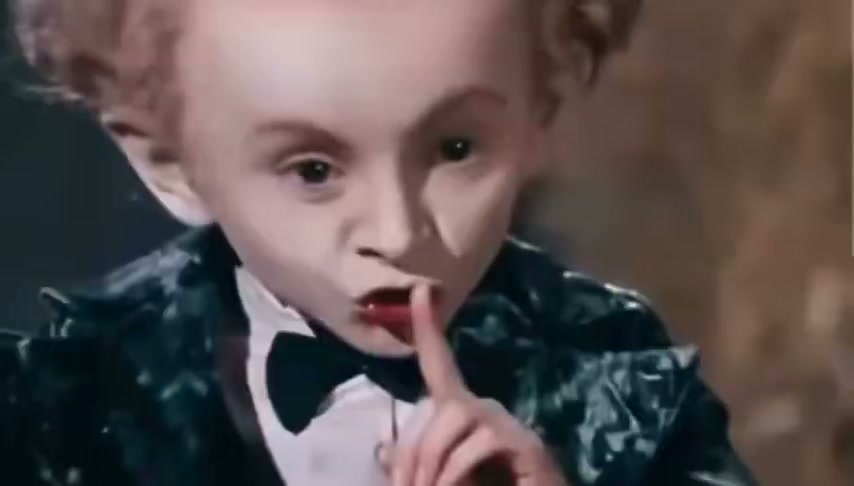
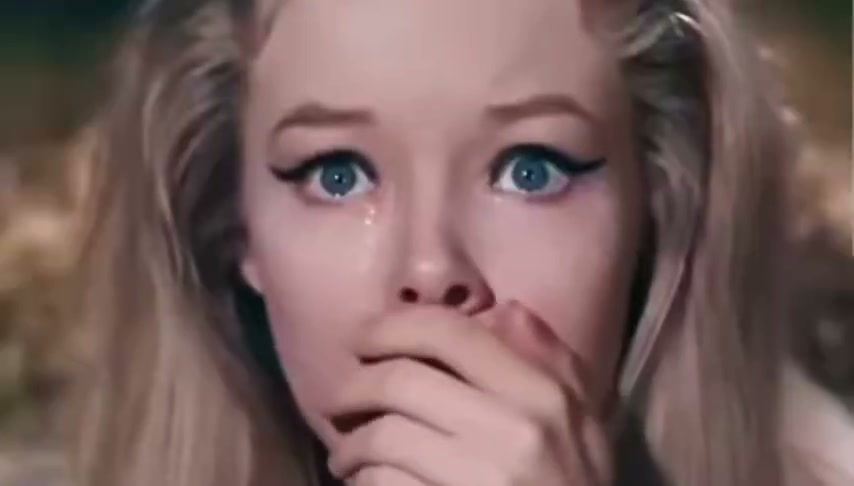
Original template frames identify the two roles. They are not uploaded photos or generated results.
1. Choose the role—not just the first upload box
- Dancer only: upload to Photo 1 and leave Photo 2 empty.
- Reacting character only: upload to Photo 2 and leave Photo 1 empty. There is no requirement to fill the first box.
- Both characters: upload one photo per role. Use Swap Roles if the assignments are reversed.
With one photo selected, Move to the other role changes its assignment without uploading it again. Empty slots instruct the model to retain the template actor. AI details can vary between shots.
You can select the same photo twice to use it for both roles. Facial likeness can vary between the two characters. A blank pair of slots cannot create a task.
2. Check the reference and photo mapping
The source scene includes a shushing gesture, a reaction close-up and a tiptoe dance. The current template is a 12-second landscape excerpt. The intended edit changes facial identity while retaining costumes, bodies, choreography, the straw-room setting and camera sequence. It does not reproduce the clothing in your photo or replace the background.
The actor screenshots show original reference frames, helping you identify each role before assigning your photos.
3. Pay once for a video, without a subscription
Generation costs 100 credits per task and produces a 12-second, 16:9, 480P MP4 with the original soundtrack restored without re-encoding. Allow approximately 4–5 minutes; queueing and provider load can make it longer. AI likeness and motion can vary.
Pricing and credits explains one-time USD packs purchased through Stripe. Selecting photos does not charge credits. Sign in, buy credits, review the displayed generation cost, and submit once. An uncertain submission should be checked in task history before starting over.
The smallest pack is USD 9.90 for 100 credits, covering one generation with either one or two characters. There is no subscription requirement. Buying a credit pack is a one-time payment, and downloading a successful result does not incur a separate charge. Watching the reference is free; it is not a free personalized generation preview.
4. Follow the task and download
The task view reports queued, generating, checking, successful or failed states. Refreshing queries saved tasks. A successful, unexpired result offers a preview and an MP4 download of the same work, with no separate download charge.
Confirmed failures restore the deducted credits once. Only a completed restoration is labeled refunded. A retry creates a new task; review its cost again. This credit restoration is different from a refund to your payment card.
What if the face, payment or finished video is not what I expected?
Check the existing task before generating again. A new submission is a new paid task, not a refresh of the old one.
- The wrong person is dancing: check the photo-to-role assignment. Before submission, use Swap Roles for two photos or Move to the other role for one. An already generated video needs a new task to change its cast.
- A face changes between shots: compare the close-ups with the input photo and the published examples. This generator recreates the scene with AI; it is not a frame-by-frame edit that preserves every unselected pixel. Even the unselected actor can change.
- The result looks different but plays: appearance differences alone do not automatically restore credits. Review the result and refund policy before paying for another attempt.
- Payment completed but credits or a task are missing: return to the same account and check credits and saved tasks first. Contact support with the order or task ID rather than purchasing again immediately.
- Generation is taking longer than 4–5 minutes: the estimate is not a deadline. Check the saved task status; a pending task is not yet a confirmed failure. Confirmed technical failures restore its credits once.
- A finished video will not play or download: contact support with the task ID while it is still within the 24-hour retention period. Download working results promptly; the service is not a permanent video archive.
Photos, deletion and privacy
Private uploads and results expire after 24 hours and are removed by the cleanup worker. Completed work can be deleted from its task card; a failed task must finish credit restoration first. Local browser drafts last up to 30 minutes. Photos are sent to the generation provider on submission; provider-side retention follows its own policies.
For an invalid image, try an unfiltered JPG with one clear face. For an uncertain payment or task, use account support. For the clip’s background, read What is Rumpelstiltskin AI?.
See a real generation test
The example below uses AI-created adult portraits and the same two-role template. Compare the photos with the finished video.
From two photos to a generated video
Two photos, two roles: one for the dancer and one for the onlooker. Watch the video they produced below. Both portraits are AI-created adult characters.
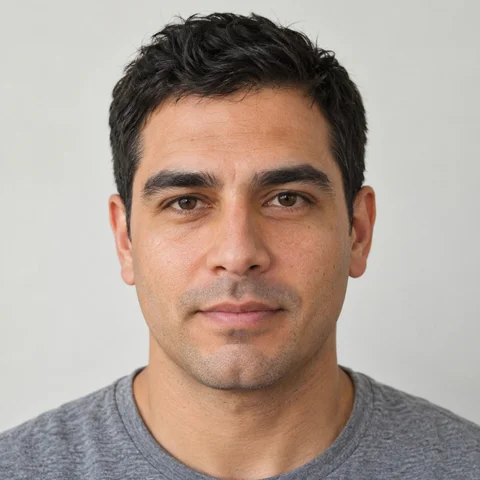
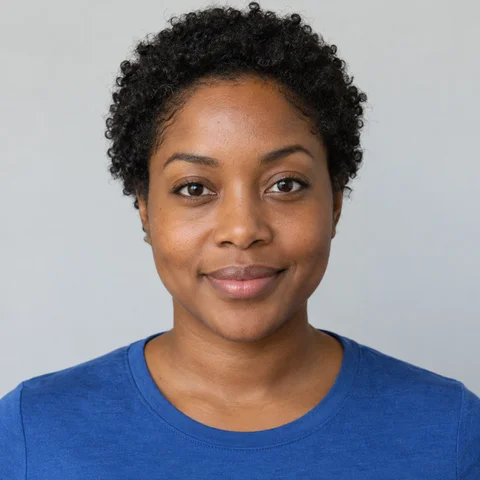
Actual generated result · Original soundtrack
- Created 2026-10-09
- This video took 246 seconds
- 12 seconds · 854 × 480 · MP4
In this video, a brief close-up shows the other character’s face, and a gesture differs from the template. Faces and movement can vary between generations, as can the time to finish.
For problems signing in or accessing a task, email support without creating a new account.
More examples and tools
Read the onlooker photo and video example and compare tools, video formats and prices.